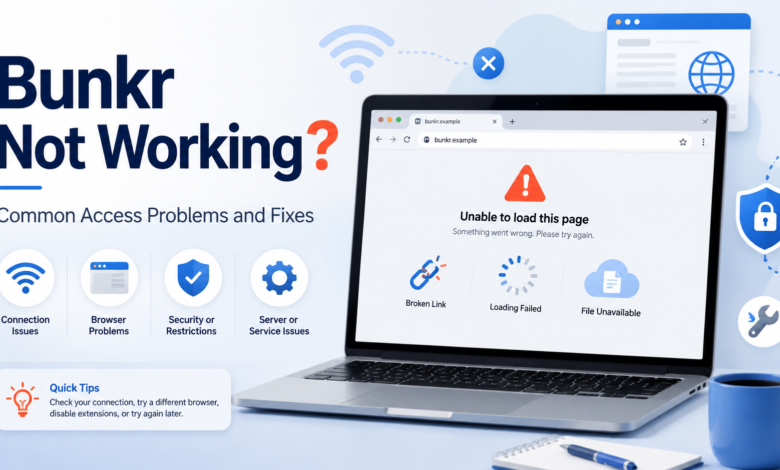
Bunkr can feel confusing when a page does not open, an album keeps loading, or a file refuses to play. Many users visit it to view shared files, open albums, or download media. When something breaks, the problem is not always clear at first.
Sometimes the issue comes from your browser, internet connection, device settings, or blocked scripts. Other times, the problem may come from the file host, a changed domain, removed content, or heavy traffic on the server.
This guide explains the most common reasons Bunkr may not work and what you can do safely. The goal is simple: help you understand the issue without rushing into risky downloads, unsafe pop-ups, or unknown tools.
What Is Bunkr?
Bunkr is generally known as a file-hosting and album-sharing platform. People may use it to store, share, or view media files through shared pages. Some users open single files, while others visit full albums with several items.
Like many free file-hosting services, it may depend on active servers, working domains, browser support, and user-uploaded content. That means the experience can change from one page to another.
It is also important to remember that not every shared page is safe or reliable. The platform may host different kinds of files from different uploaders, so users should be careful before opening unknown content or downloading anything.
Why Bunkr May Stop Working
There is not one single reason why Bunkr stops working. A page may fail because the server is down, the album was removed, the file expired, or the browser is blocking something needed for playback.
Access problems can also happen when the site changes its domain or structure. A saved page may stop working if the old address no longer points to the right place. This is common with file-hosting sites that move between domains.
Another common reason is network filtering. Some internet providers, workplace networks, school Wi-Fi systems, or security apps may block access to certain file-sharing domains. In that case, the page may not load even if it works for other people.
Check Your Internet Connection First
Before changing browser settings, start with the basic connection check. Open a few normal websites and see if they load quickly. If everything is slow, the problem may be your internet, not the file page.
Restarting your router can help when pages freeze, downloads fail, or videos stop halfway. A fresh connection often clears small network errors that build up over time.
You can also switch from Wi-Fi to mobile data, or from mobile data to Wi-Fi. If Bunkr works on one connection but not another, your original network may be blocking it or having route problems.
Browser Problems That Can Block Access
Your browser can affect how Bunkr loads. Old cache files, broken cookies, strict privacy settings, or blocked scripts may stop album pages from opening correctly. This can make the site look broken even when it is online.
Try opening the same page in another browser. For example, if it fails in Chrome, test it in Firefox, Edge, or Safari. This quick test helps show whether the issue is linked to one browser only.
Clearing cache and cookies can also help, but it may sign you out of other sites. If you do not want to clear everything, try private or incognito mode first. That opens a cleaner browser session without many saved settings.
Device and App Issues
Sometimes the problem comes from the device itself. A phone with low storage, an old browser version, or too many background apps may struggle to load large albums or media files.
If you are using a phone, try closing other apps and refreshing the page. Large image and video pages can use more memory than a normal website, especially on older devices.
On desktop, update your browser and restart the device if pages keep freezing. Simple updates can fix playback errors, download problems, and page loading issues caused by old browser components.
Domain Changes and Old Addresses
One of the biggest reasons Bunkr links fail is a changed or outdated domain. File-hosting platforms may move content between different addresses, and old saved pages may stop working without warning.
If an album was shared months ago, the address may no longer be active. The page might show an error, redirect somewhere unexpected, or fail to load at all.
Be careful with lookalike domains. If a page asks you to install strange software, allow push notifications, or enter personal details, leave the page. A working file page should not require risky steps just to view basic content.
Common Error Messages and What They Mean
Different errors can point to different causes. A “page not found” message usually means the file, album, or address is no longer available. A timeout may mean the server is slow or your network cannot connect.
A “forbidden” or “access denied” message may mean the page is blocked, private, restricted, or unavailable in your region. It can also happen when automated traffic protection is active.
Here is a simple way to read common problems:
- Page not found: the file or album may be removed.
- Timeout: the server or your connection may be slow.
- Access denied: the page may be blocked or restricted.
- Playback error: the media file may be damaged, removed, or unsupported.
Video Playback Not Working
A video may open but refuse to play. This can happen when the file type is not supported by your browser, the server is slow, or the file was not uploaded correctly.
Try waiting a short moment and refreshing the page once. If the video starts but keeps buffering, the server may be under load or your connection may be unstable.
Avoid installing random video players from pop-ups. If the page says you need a strange extension or unknown app to watch a file, treat it as a warning sign. Most normal browser playback should not require unsafe add-ons.
Downloads Failing or Stopping Halfway
Downloads may fail when the file is large, the connection drops, or the server cuts the session. This is more likely with big media files or albums that include many items.
Try downloading one file at a time instead of several at once. Multiple downloads can slow the connection and increase the chance of failure.
Also check your device storage. A download may fail if there is not enough free space. On phones, large files can stop without a clear warning when storage is almost full.
Albums Not Loading Correctly
Albums may fail to load when they contain many files, broken items, or media from older uploads. The page may appear blank, keep spinning, or show only part of the album.
Try refreshing the page, opening it in another browser, or testing it on a different device. If only one album is broken while others work, the issue may be with that specific album.
An album can also stop working if the uploader removed files or if inactive files were deleted. In that case, there may be nothing you can fix from your side.
Ads, Pop-Ups, and Redirect Problems
Some file-hosting pages may show ads, pop-ups, or redirects. These can make users think the site is broken, especially when the real file page is hidden behind extra windows.
Close suspicious pop-ups and avoid clicking fake download buttons. Some ads may copy the look of real buttons, but they lead to unrelated pages.
A trusted ad blocker may reduce distractions, but it can also break some page elements. If the page will not load, test once with the blocker disabled, then turn it back on after checking.
Security and Privacy Warning Signs
Safety matters when using any file-sharing service. You should be extra careful if a page asks for permissions that do not make sense, such as browser notifications, unknown downloads, or personal information.
Do not enter passwords, payment details, or private data on a random file page. File-hosting pages should not need sensitive information just to open shared content.
If your security app blocks a Bunkr-related page, do not ignore the warning too quickly. Security tools sometimes block domains because of risky behavior, harmful files, or reports from other users.
Safe Fixes You Can Try
The safest fixes are simple and do not require unknown software. Start by refreshing the page, checking your connection, updating your browser, and testing another device.
You can also copy the address carefully and make sure it is complete. A missing character can break a shared album or file page.
If the page still fails, wait and try again later. Server problems, traffic spikes, and temporary blocks may clear after some time. Repeatedly forcing the page to load usually does not help.
When the Problem Is Not on Your Side
Sometimes you cannot fix the issue because the file is gone, the album was deleted, or the domain is no longer active. This is common with user-uploaded files and older shared pages.
If other Bunkr pages work but one specific page does not, the problem is likely tied to that page. The uploader may need to share a fresh address or reupload the file.
Do not chase the same file through random mirror pages. Fake copies can lead to unsafe downloads, misleading ads, or files that are not what they claim to be.
Better Habits for Using File-Hosting Pages
A few careful habits can reduce problems in the future. Keep your browser updated, avoid suspicious pop-ups, and do not download files from unknown people unless you trust the source.
It also helps to scan downloaded files before opening them. This is especially important for compressed files, installers, scripts, or anything that asks to run on your device.
For important files, use trusted storage options with stronger account controls and clearer privacy settings. Free public file pages can be useful, but they are not always the best place for private or valuable content.
Final Thoughts
Bunkr not working can happen for many reasons, including browser errors, old domains, server issues, blocked networks, removed files, or unsafe page behavior. The right fix depends on what you see on your screen.
Start with safe steps first. Check your connection, try another browser, clear temporary browser data, and avoid suspicious downloads. These actions solve many common access and playback issues.
If a page still does not work, the file or album may no longer be available. In that case, the safest answer is to stop troubleshooting and ask the original uploader for a fresh working page.
Frequently Asked Questions (FAQs)
Why is Bunkr not opening on my browser?
Bunkr may not open because of browser cache, blocked scripts, a weak connection, or a domain issue. Try another browser, use private mode, and check whether other websites are loading normally.
Why does a Bunkr album show a blank page?
A blank album page may mean the album is broken, removed, or blocked by your browser settings. It can also happen when the album has too many files or the server is slow.
Is Bunkr safe to use?
Bunkr can be used for file sharing, but safety depends on the page, uploader, ads, and file type. Avoid unknown downloads, fake buttons, and pages that ask for strange permissions.
Why do Bunkr downloads keep failing?
Downloads may fail because of large file size, server limits, network drops, or low device storage. Try one file at a time and make sure your internet connection is stable.
What should I do if a Bunkr page redirects me?
Close suspicious redirect pages and avoid clicking fake download buttons. If the same page keeps redirecting, use caution because the page may not be safe or may be loaded with aggressive ads.
Can I fix an old Bunkr link?
You can try checking the address, refreshing the page, or opening it in another browser. But if the file was removed or the domain changed, only the uploader can provide a working version.
Read More: Willowmagazine.co.uk